Settings
Open the settings, read what each option does, add radio stations, and save or reset your changes.
Draft copyOpen the settings
Settings is in the main menu and in the in-game menu.
The settings have four tabs: Gameplay, Graphics, Controls and Audio. On Xbox, Controller takes the place of Controls.
The buttons at the bottom are RESTORE TAB DEFAULTS, SAVE and BACK TO MENU. Save and reset explains them.
A fourth button, SUBMIT BUGS & FEEDBACK, reports a problem to the studio.
Gameplay
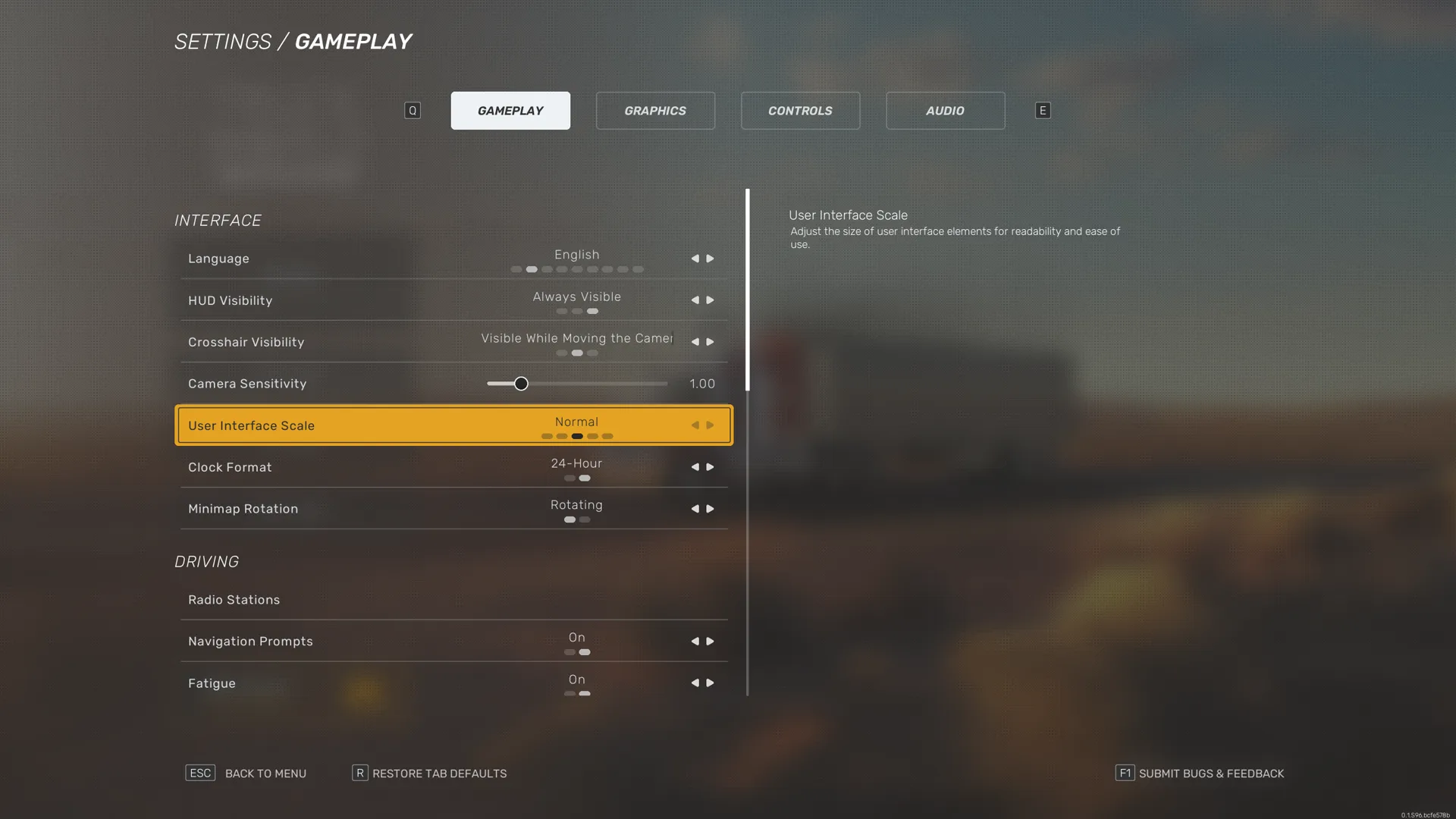
Settings › Gameplay sorts its options under four headings: Interface, Driving, Damage and Traffic & World.
The highlighted option shows its description on the right. The lists below sum up each description, grouped by topic rather than by heading.
These options set how the truck shifts. Gearbox and clutch explains each gearbox type.
- Gearbox Mode is fully automatic, semi-automatic or manual. Fully automatic uses the throttle to move forward and the brake to reverse. Semi-automatic has you select forward or reverse, then drive with the throttle and brake. Manual has you select every gear.
- Clutch Mode sets automatic or manual clutch operation with a manual gearbox.
- Shifter Type sets the shifter for manual gear changes.
These options cover fuel. See Refuelling Mode.
- Refuelling Mode is Simplified or Realistic.
- Fuel Consumption turns fuel use on or off.
These options cover the trailer and its load. See Trailer settings.
- Automatic Trailer Coupling turns automatic coupling on or off.
- Automatic Rear Height Adjustment turns on or off the automatic rear height adjustment that matches different trailer heights.
- Cargo Straps is Always tight, One tightens all or Each separately. With One tightens all, tightening one strap tightens every strap on the trailer.
These options turn damage and driver fatigue on or off. See Truck condition and rest.
- Truck Damage, from crashes and wear
- Cargo Damage
- Fatigue, the driver fatigue system
These options cover the headlights, the camera and the in-game steering wheel.
- Automatic Headlights turns automatic headlights on or off.
- Automatic Camera Pan sets how much the camera pans while the truck turns, from 0 for none to 1 for the most.
- Camera Sensitivity sets how strongly the camera responds to input.
- Xbox only Invert Camera Y-Axis has no description in the game.
- Steering Wheel Visibility shows or hides the in-game steering wheel.
- Steering Wheel Animation Range sets the animation range of the in-game steering wheel.
These options change what the screen shows. HUD settings and Navigation settings say more about the HUD and the minimap.
- HUD Visibility hides the HUD, shows it only with an external camera, or always shows it.
- Crosshair Visibility is Always hidden, Visible While Moving the Camera or Always Visible.
- User Interface Scale sets the size of interface elements for readability.
- Minimap Rotation is North Up or Rotating, which turns the minimap with your driving direction.
- Navigation Prompts turns navigation prompts on or off.
- Clock Format is 12-Hour or 24-Hour.
- Language sets the language of the interface and subtitles: Deutsch, English, Español, Français, Polski, Português, Русский, Türkçe or 中文.
These options cover traffic, people in the world and the radio.
- Traffic Intensity sets the traffic density on the road. The game says higher settings may affect performance.
- Pedestrians turns pedestrians on or off.
- Traffic Offence Detection turns offence detection on or off. The game does not describe what counts as an offence yet.
- Radio Stations manages your favourite stations and adds custom ones. See Radio Stations.
Graphics
Settings › Graphics groups its options under Display, Quality and Mirrors. The game says many of them may reduce performance at higher settings.
Settings › Graphics has Brightness, the first option below. The other graphics options are PC only.
- Brightness sets image brightness for light and dark areas. For the best calibration, set it so you can tell every segment apart.
- PC only Field of View sets how wide the view is. Higher values show a wider view.
- PC only Resolution opens a Window Resolution list to pick from.
- PC only Mirror Preset sets the overall mirror quality. Four more options tune the mirrors one by one.
Audio
Settings › Audio has a volume slider for each sound category:
- Master Volume sets the overall volume. Lowering it lowers every other category in proportion.
- Menu Music Volume sets the music in the main menu and the pause screens.
- Radio Music Volume sets the music from the truck radio.
- Sound Effects Volume sets effects such as cargo loading and mechanical interactions.
- User Interface Volume sets interface sounds such as menu clicks and pop-up notifications.
- Dialogue Volume sets spoken dialogue.
Controls and Controller
Settings › Controls lists every action with its bindings. At the top, under Input Device Settings, three rows open more screens:
- Input Configurator opens the controls setup again to review and edit bindings.
- Controller Presets opens the presets to choose a control layout.
- Force Feedback and Haptics opens force feedback and haptic settings for compatible devices.
Settings › Controller takes the place of Settings › Controls. It shows the controller and wheel layouts and has no custom bindings. See Control device.
Controls explains both screens in more detail.
Radio Stations
Settings › Gameplay › Radio Stations opens the Radio panel, marked Truck radio. It lists stations with their Name, Genre and Language.
The panel also shows a count of radio slots. The game does not explain the slots yet.
To add your own station:
Select ADD Station.
In the ADD STATION window, enter the station's Name and URL.
Press Save. To leave without saving, press Close.
If another station already has that name, the window shows Warning: A radio station with this name already exists.
In the cab, use the Radio or the Vehicle Radio control to play the stations. Settings › Audio › Radio Music Volume sets how loud the radio plays.
Default keys from the PC presets
Scroll horizontally to see all columns.
| Action | Keyboard and mouse | Xbox controller |
|---|---|---|
| Vehicle Radio | R | LBX |
Save and reset
Press SAVE to keep your changes.
RESTORE TAB DEFAULTS resets the options of the open tab. Each tab asks first, for example Reset Gameplay options on the Gameplay tab.
When you have unsaved changes, the game asks whether to save them:
- When you leave the settings, it asks Do you want to save your settings before exiting?
- When you switch tabs, it asks Would you like to save your changes before switching tabs?
- PC only When you open the input configurator, it asks Would you like to save your changes before opening the Configurator?
Answer Yes or No. BACK TO MENU leaves the settings.
When bindings conflict, the bottom of the screen shows Warning: Input conflict detected! Please verify your settings. Check your bindings in Settings › Controls. See Change a binding.