Jobs
Find and accept a job, pick up the trailer, deliver it and load cargo yourself.
Draft copyFind and accept a job
Jobs are on the JOBS tab of the Management screen. You can also open it with Job.
Under Available Jobs, select a job.
Its details show the pickup and delivery depots.
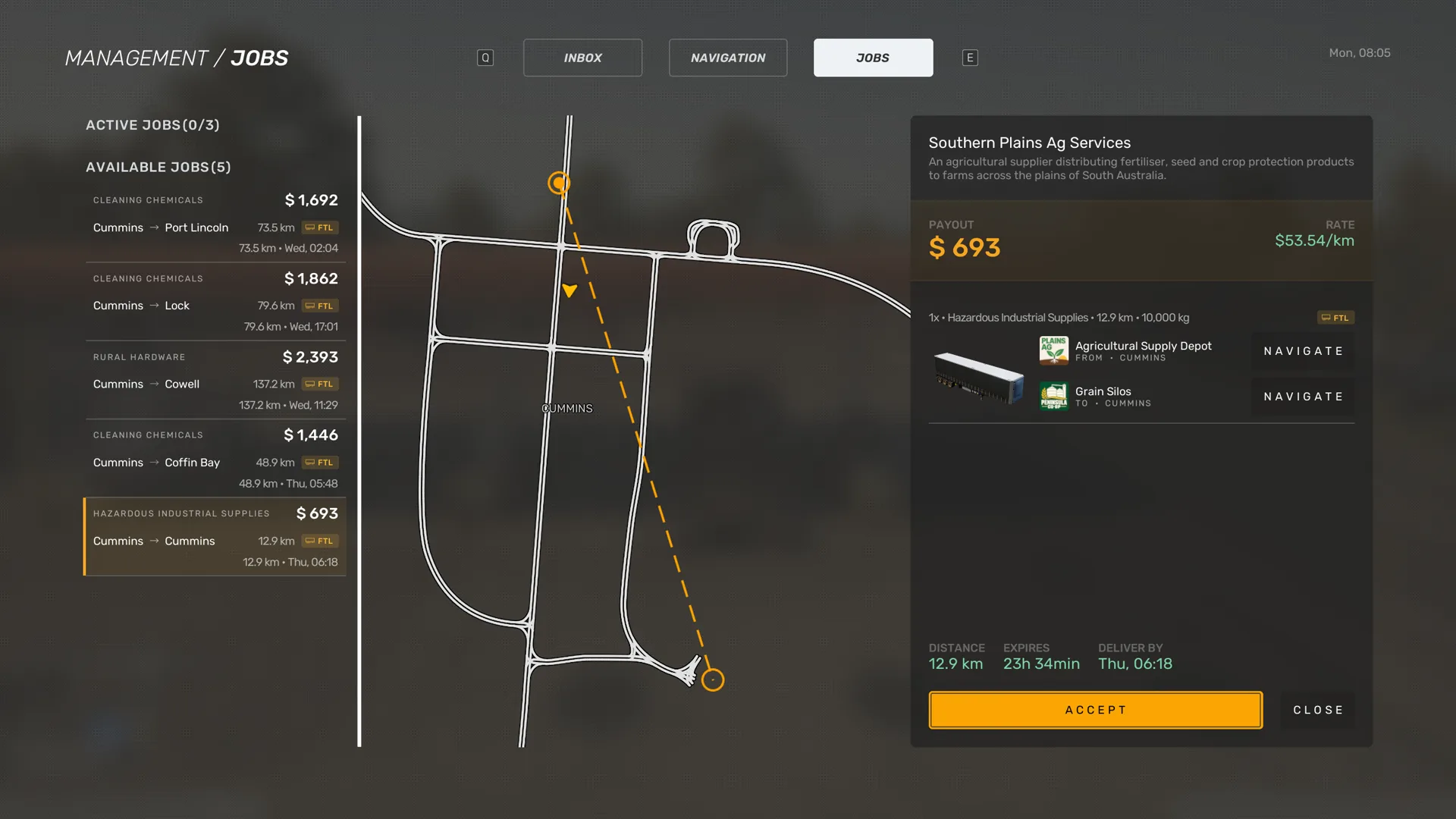
Select ACCEPT.
The game shows You have a new job!
Select navigate beside the pickup depot to set your route.
The left list also has Active Jobs and Story Jobs. Story missions are under Story Jobs. See Story jobs.
If you have too many jobs at once, the game shows:
- You have too many active jobs.
To drop an active job, select CANCEL. The game asks Are you sure you want to cancel the order?
Job details
A job shows:
- The company name and description.
- Distance, the RATE per kilometre and the PAYOUT.
- Expires for an offer, and Deliver By for the delivery deadline.
- ACTIVE JOB and Accepted At once you have accepted it.
The waybill lists the pickup depot after From · and the delivery depot after To ·. The navigate button beside each depot sets your route there.
Trailer icons are marked FTL or PTL. See Trailer info.
While you drive, the HUD shows the Cargo, Cargo Damage, Expected and Job income.
Pick up the trailer
Follow the route to the pickup depot.
At the loading bay, use the Cargo management prompt at the intercom.
It opens the bay screen.
Select Pull Trailer for your job.
The trailer assigned to your job appears in the bay.
Close the screen and get in the cab.
The bay screen lists Pickups and each loading dock. A free dock shows empty slot. The list can also show No loads.
A waybill can also show Blocked spawn location. The game does not say how to clear it.
Deliver the load
Set the route to the delivery depot.
Press Job, select your active job and select navigate beside the delivery depot (To ·).
You can also set it on the map. After coupling, you can answer the CB radio instead, and Base sets it for you. See Set a route.
Job:Keyboard and mouseBFollow the route to the delivery depot.
Reverse the trailer into the marked delivery bay.
The parking area turns green when the trailer is correctly positioned.
Uncouple the trailer.
Disconnect the lines, lower the landing gear and release the fifth-wheel lock. See Uncouple a trailer.
At the intercom, use the Cargo management prompt to open the bay screen.
In the Bay panel, select Drop Trailer for your trailer, then close the screen.
The bay screen can also show these messages:
- Wrong delivery address!
- This trailer cannot be returned here
- The slot must be empty
Result: The game shows "Cargo successfully delivered." An email with a summary of the job follows in your Inbox. It shows what you earned after deductions.
At the end of the tutorial job, the tutorial asks you to choose a new job from the available work. See Find and accept a job.
Load cargo yourself
Some bay screens let you place cargo items on the trailer. Open the bay screen with the Cargo management prompt at the intercom.
Under Pickups, select LOAD for a cargo item.
The item goes onto the trailer grid.
Pick up the item, move it, then put it down.
On PC, click the item to pick it up and click again to put it down. While you hold it, press R to Rotate it, the key the PC hint bar shows.
Auto-stacking rearranges the cargo already on the trailer. It does not load items from Pickups. The screen also has Unload and Unload all.
Mass info shows the trailer load in tonnes and its Distribution from Light to Heavy. The selected item shows its size, mass, origin and destination. The screen hint reads Hover or drag a cargo to see its details.
If an item does not fit, the game shows:
- No space on the trailer
The game does not explain how the mass distribution affects driving yet.