Controls
Choose a control device, look up the default keys, and change bindings, presets, force feedback and vibration.
Draft copyControl device
Controls work differently on each platform:
- PC only Settings › Controls lists every action with its keys. You can change bindings, apply presets, run Input Configurator and open the force feedback window.
- Xbox only Settings › Controller shows button layouts for the Xbox controller and the Steering wheel, with steering sensitivity, vibration and wheel force feedback options. It has no custom bindings.
The controls setup, Setup your controls, opens with Select Control Device. Pick one of four devices:
- Keyboard steers and drives with standard keys.
- Mouse steering steers when you move the mouse left or right. The keyboard does everything else.
- Steering wheel is a physical wheel with wheel feedback.
- Gamepad gives analogue steering, throttle and braking.
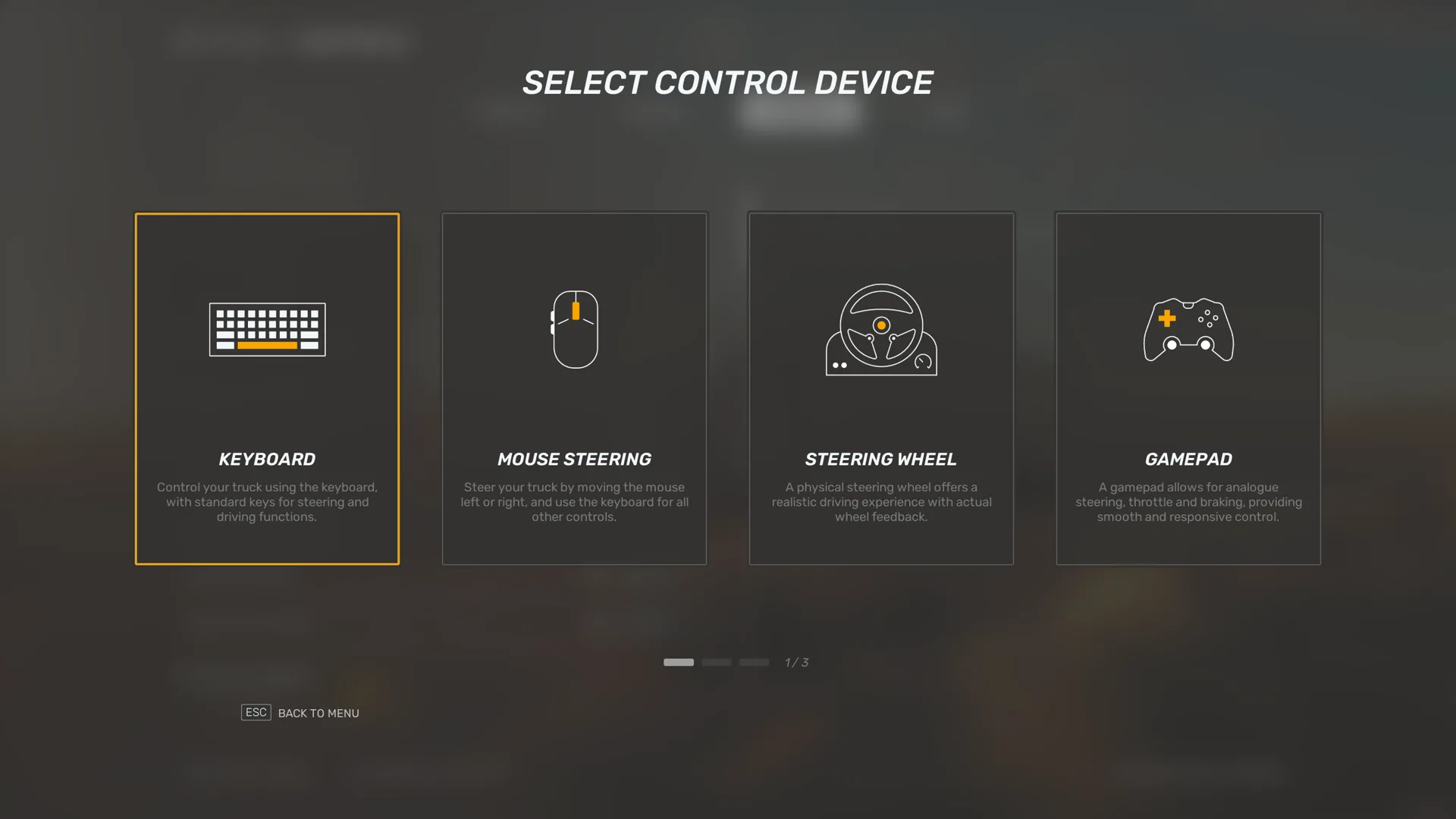
Set up your controls walks through the rest of the setup. To open it, use Input Configurator in Settings › Controls.
The key tables show the default keys of the two PC presets, Mouse and keyboard (default) and Xbox. On Xbox, the controller defaults come from the same Xbox preset. Not bound means the action has no default key. In a combo such as LB + A, hold the first button and press the second.
Steering wheels have no default preset, so the tables have no wheel column.
The game adds its own default bindings for steering wheels. The tables do not list them.
On foot and menus
The tables follow the headings of Settings › Controls on PC. Global Actions has Interact and Toggle Info Panel, which toggles the info panel. Some tips call it Toggle Info Board. Info panel shows what the panel holds.
Default keys from the PC presets
Scroll horizontally to see all columns.
| Action | Keyboard and mouse | Xbox controller |
|---|---|---|
| Interact | Left Mouse Button or E | A |
| Toggle Info Panel | Tab | RBD-pad Up |
On the keyboard you move with one key per direction. Rows that start with Combine take one axis for both directions, such as a stick.
Default keys from the PC presets
Scroll horizontally to see all columns.
| Action | Keyboard and mouse | Xbox controller |
|---|---|---|
| Move Forward | W | Not bound |
| Move Backward | S | Not bound |
| Move Left | A | Not bound |
| Move Right | D | Not bound |
| Combine Move Forward/Backward | Not bound | Left Stick |
| Combine Move Left/Right | Not bound | Left Stick |
| Rotate Vertically | Mouse Y | Right Stick |
| Rotate Horizontally | Mouse X | Right Stick |
Menu has three rows. Map opens the map, Job opens Jobs and Mail opens Mail.
Default keys from the PC presets
Scroll horizontally to see all columns.
| Action | Keyboard and mouse | Xbox controller |
|---|---|---|
| Map | M | View |
| Job | B | Not bound |
| N | Not bound |
Driving and gears
These rows are under Driving. The keyboard steers with Steer Left and Steer Right. The gamepad preset steers with Steer Axis.
Default keys from the PC presets
Scroll horizontally to see all columns.
| Action | Keyboard and mouse | Xbox controller |
|---|---|---|
| Steer Left | A | Not bound |
| Steer Right | D | Not bound |
| Steer Axis | Not bound | Left Stick |
| Accelerate | W | RT |
| Brake | S | LT |
| Combine Accelerate/Brake | Not bound | Not bound |
| Clutch | Not bound | Not bound |
Clutch has no default binding in either preset. Manual Clutch makes you operate the clutch when you shift gears.
If you choose Manual Clutch, assign an input to Clutch in Settings › Controls.
The gear rows are under Direct Gear Selection.
Default keys from the PC presets
Scroll horizontally to see all columns.
| Action | Keyboard and mouse | Xbox controller |
|---|---|---|
| Shift Gear Up | Left Shift | B |
| Shift Gear Down | Left Ctrl | X |
| Gear 1 | Not bound | Not bound |
| Gear 2 | Not bound | Not bound |
| Gear 3 | Not bound | Not bound |
| Gear 4 | Not bound | Not bound |
| Gear 5 | Not bound | Not bound |
| Gear 6 | Not bound | Not bound |
| Reverse Gear | Not bound | Not bound |
| Range Toggle | Not bound | Not bound |
| Splitter Toggle | Not bound | Not bound |
Range/Splitter Mode sets how the range and splitter toggles work. In Button mode, each press toggles the state. In Switch mode, the state stays set until you change it. The game does not describe the range and splitter further yet.
Cab, camera and CB radio
Vehicle Control has the switches and systems of the truck. On the gamepad, many of them use LB or RB as the held button. Cab controls says what the game shows about them.
Default keys from the PC presets
Scroll horizontally to see all columns.
| Action | Keyboard and mouse | Xbox controller |
|---|---|---|
| Ignition | I | LBA |
| Lights | L | LBB |
| Hazard Lights | / | LBY |
| Horn | H | Left Stick Button |
| Parking Brake | Space Bar | D-pad Up |
| Retarder | G | RBY |
| Jake Brake | J | RBB |
| Differential Lock | V | RBX |
| Cruise Control | T | RBA |
| Wipers | P | Not bound |
| Left Turn Signal | , | D-pad Left |
| Right Turn Signal | . | D-pad Right |
| Exit Vehicle | F | Y |
| Vehicle Radio | R | LBX |
| Mirror & Seat Settings | O | Not bound |
VEHICLE CAMERA has the main camera rows. Change View switches the vehicle camera view. Hold Free Look (Mouse Steering) to rotate the camera while mouse steering is active.
Default keys from the PC presets
Scroll horizontally to see all columns.
| Action | Keyboard and mouse | Xbox controller |
|---|---|---|
| Rotate Vertically | Mouse Y | Right Stick |
| Rotate Horizontally | Mouse X | Right Stick |
| Change View | C | Right Stick Button |
| Free Look (Mouse Steering) | Right Mouse Button | Not bound |
Advanced Vehicle Camera has the set views, camera rotation and quick views. The Enjoy the Scenic Road tip calls the set views Pre-made views. On the keyboard, most of them are on the number pad.
Default keys from the PC presets
Scroll horizontally to see all columns.
| Action | Keyboard and mouse | Xbox controller |
|---|---|---|
| View Left | Num 4 | Not bound |
| View Center Steering Wheel | Num 5 | Not bound |
| View Right | Not bound | Not bound |
| View Left A-Pillar | Num 7 | Not bound |
| View Centre Dashboard | Num 8 | Not bound |
| View Right A-Pillar | Num 9 | Not bound |
| Rotate Camera Left | Num / | Not bound |
| Rotate Camera Right | Num * | Not bound |
| Quick View Left | Num 1 | LBRight Stick Left |
| Quick View Right | Num 3 | LBRight Stick Right |
The CB Radio heading has CB Radio and CB option 1 to CB option 4, the same keys the CB tutorial step shows. CB radio explains the menu and calls.
Default keys from the PC presets
Scroll horizontally to see all columns.
| Action | Keyboard and mouse | Xbox controller |
|---|---|---|
| CB Radio | X | D-pad Down |
| CB option 1 | 1 | D-pad Up |
| CB option 2 | 2 | D-pad Left |
| CB option 3 | 3 | D-pad Right |
| CB option 4 | 4 | D-pad Down |
Change a bindingPC only
To change a binding in Settings › Controls:
Select the binding. The BINDING window opens with the name of the action.
Click the detect button, or let its countdown run out.
The button reads Click to detect (starts in followed by the seconds left.
When the window shows Detecting new binding..., press the key or button you want.
Press SAVE at the bottom of the settings screen.
To keep the old binding, press the cancel key the window names.
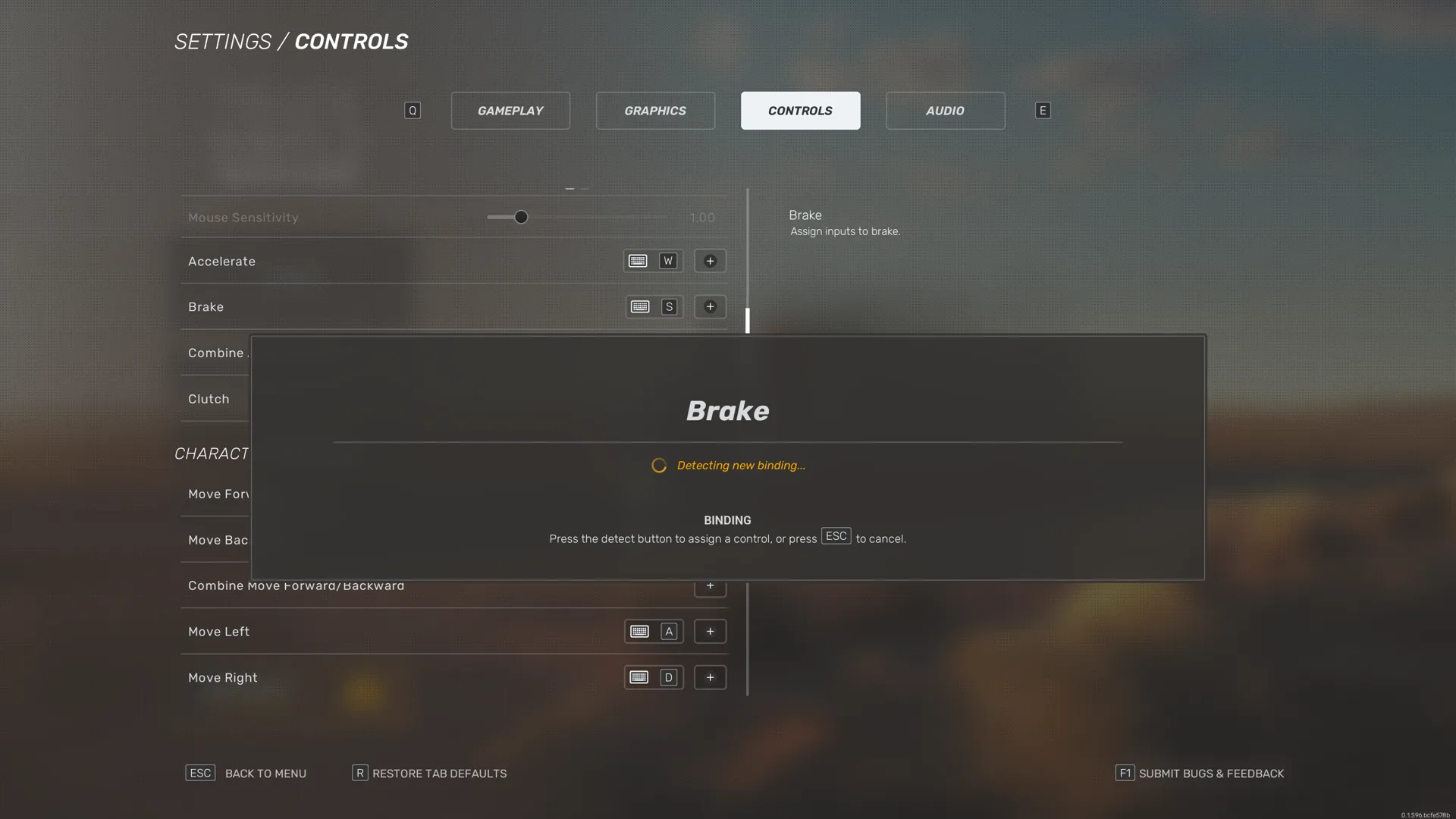
Axis inputs, such as a stick or a wheel, have more options. The panel shows the Assigned control, Controller Type with Wheel or Gamepad, Inverted Axis with Off or On, Deadzone (rest), Deadzone (end) and Output Axis Value. The steering step of the controls setup has the same options. The game does not describe the deadzone options yet.
A row such as Combine Accelerate/Brake needs a combined axis. If you bind a single axis to it, Combined Axis Binding Detection offers to switch to a combined axis binding.
If the game finds an input conflict, the bottom bar of Settings shows Warning: Input conflict detected! Please verify your settings.
To return every control to its default, press RESTORE TAB DEFAULTS on the Controls tab and confirm Reset Controls options.
Presets and devices
Controller Presets opens the CONTROLLER PRESETS window. Choose a Device and a Preset, then press APPLY. Press Close to leave.
The default presets are Mouse and keyboard (default) and Xbox. The key tables on this page come from them.
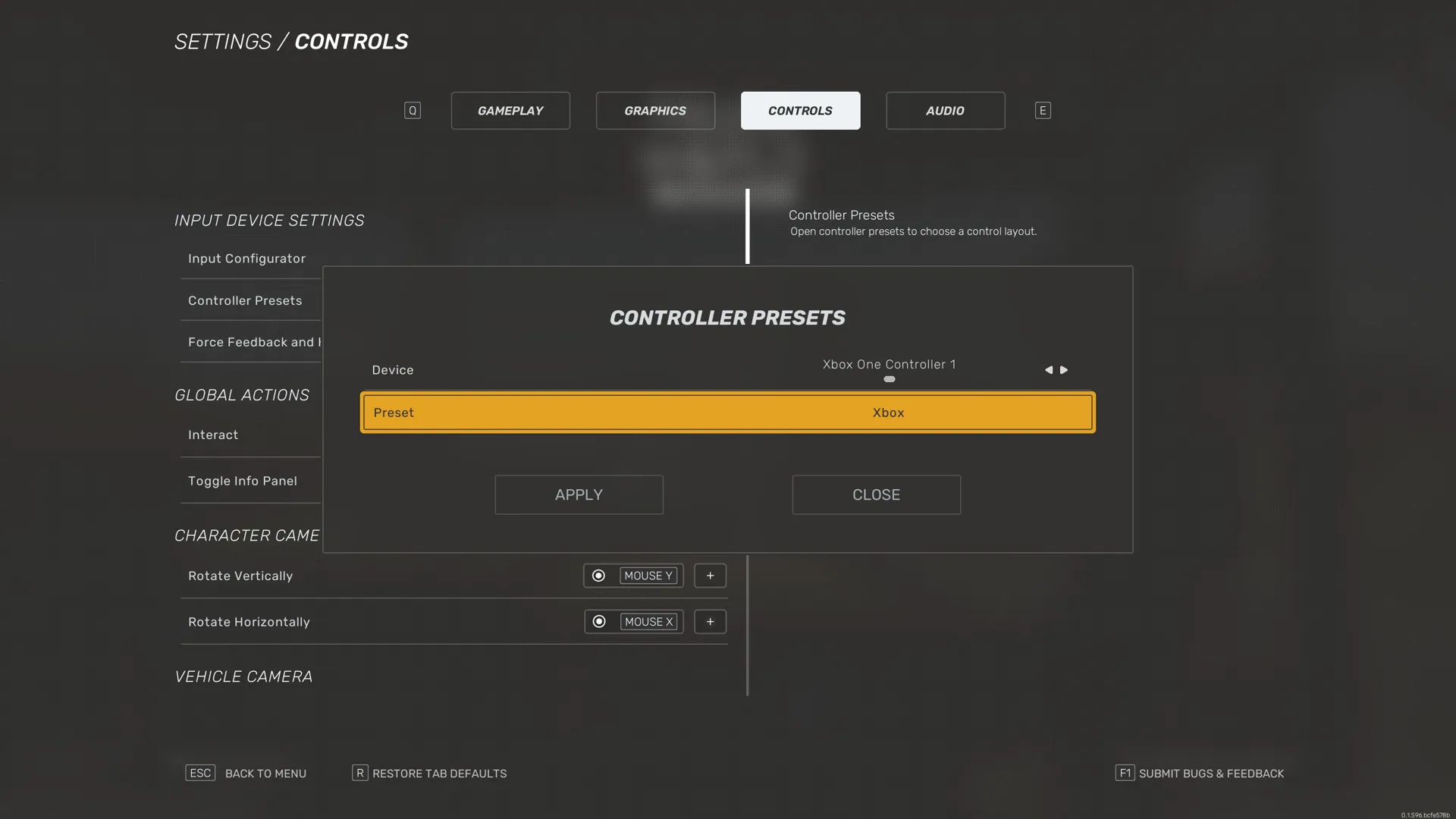
Input Configurator opens the Setup your controls screens, to review and edit bindings. With unsaved changes, the game first asks Would you like to save your changes before opening the Configurator?
When you choose Gamepad in the controls setup, the game looks for a ready-made preset for your gamepad. If it offers one, accept it to finish the setup with the preset, or decline it to set up the controls step by step.
When the game detects a new device, it asks whether you want to open the controls configurator. You can also open it later with Input Configurator.
Mouse Steering steers the truck as you slide the mouse left or right. To rotate the camera while mouse steering, hold Free Look (Mouse Steering), by default Free Look (Mouse Steering).
Mouse Sensitivity changes how much the truck steers when you move the mouse with Mouse Steering on.
Settings has a Controller screen in place of Controls. It shows button layouts for the Xbox controller and the Steering wheel. The gamepad layout also labels Navigation menu, Pause Menu, Camera Movement and Steering/Walking, and marks some buttons (Hold). The wheel layout also labels Navigation Menu and Gear Range Low/High.
When you open the in-game menu, it shows button helpers for a gamepad and a wheel. They say Engine Brake where the layouts say Jake Brake, and Left Indicator and Right Indicator for the turn signals. The wheel helper also shows Gear Range.
Force feedback and vibration
Force Feedback and Haptics opens the FORCE FEEDBACK AND HAPTIC SETTINGS window for compatible devices.
The window has a Force Feedback group and a Vibration group. Its rows are Force Feedback Device, Force Feedback Strength, Collision Force, Ground Force, Engine Vibrations, Vibration Device and Vibration Strength. The buttons are Reset and Close.
The Controller screen has matching rows for a wheel: Wheel Force Feedback Scale, Wheel Collision Force, Wheel Ground Force and Wheel Engine Vibrations. It also has Steering sensitivity and Vibration.
The game does not describe these options yet.