Navigation
Open the map, set a route and read the markers on the map and the minimap.
Draft copyOpen the map
The map is the Navigation tab of the Management menu. You can also open it with Map.
Default keys from the PC presets
Scroll horizontally to see all columns.
| Action | Keyboard and mouse | Xbox controller |
|---|---|---|
| Map | M | View |
The controller and wheel layouts in Settings › Controller label a Navigation Menu button.
Set a route
You can set a route from a job, on the map, or over the CB radio after coupling.
From a job, select navigate beside a depot on the waybill. See Jobs for the job screens.
On the map, select a destination to add a route point.
On PC, left-click the destination. Each new point gets the next number, and the route runs through the points in order.
To undo the last point, use REMOVE LAST POINT. To start over, use RESET.
On PC the hint bar shows X and R for them.
Result: The route shows in yellow on the map. Follow it to your destination.
The game's text also names an ADD WAYPOINT button. The PC map does not show it. There, a left-click adds the point.
In the fuel tutorial, the step Plan the fuel stop asks you to set the route to the nearest fuel station this way. See Find a fuel station.
With an active delivery, Base can offer a route over the CB:
- You’ve got an active delivery. Want me to set navigation to the destination?
Answer Yes, set the route. or No, not now. See Answer calls.
Map and minimap markers
The map can show Depot, Hotel, Workshop, Refuelling point, Trailers and Base markers. The minimap shows Depot, Hotel, Workshop, Refuelling point and Bays.
Under Filters, switch Depots, Refuelling station, Hotels and Workshops on or off. Zoom with ZOOM IN and ZOOM OUT.
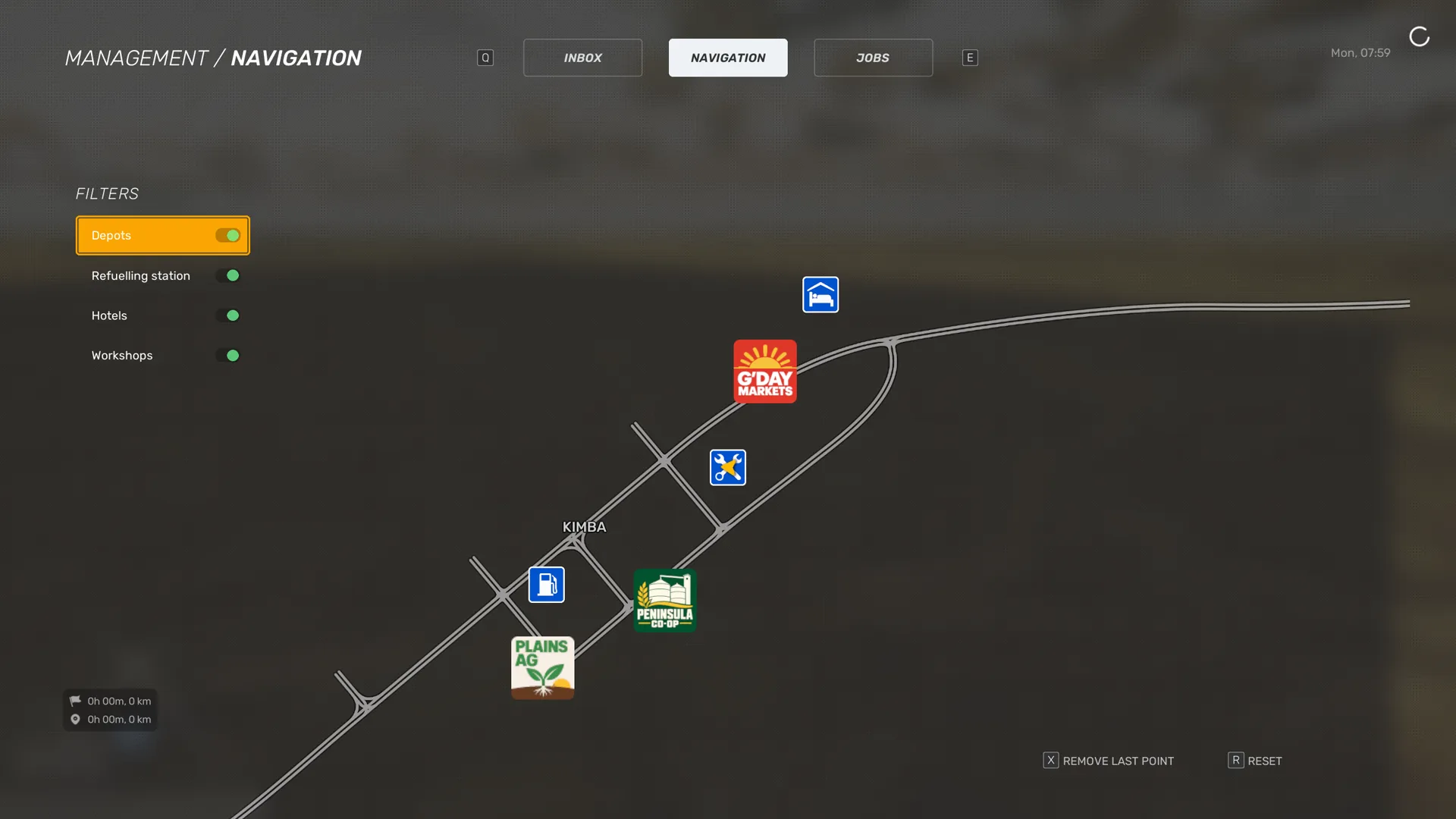
A Workshop repairs, services and washes your truck. See Workshop. At a Hotel you can rest. See Truck condition and rest.