HUD
What you see on screen while you play, and where to change it.
Draft copyTruck gauges
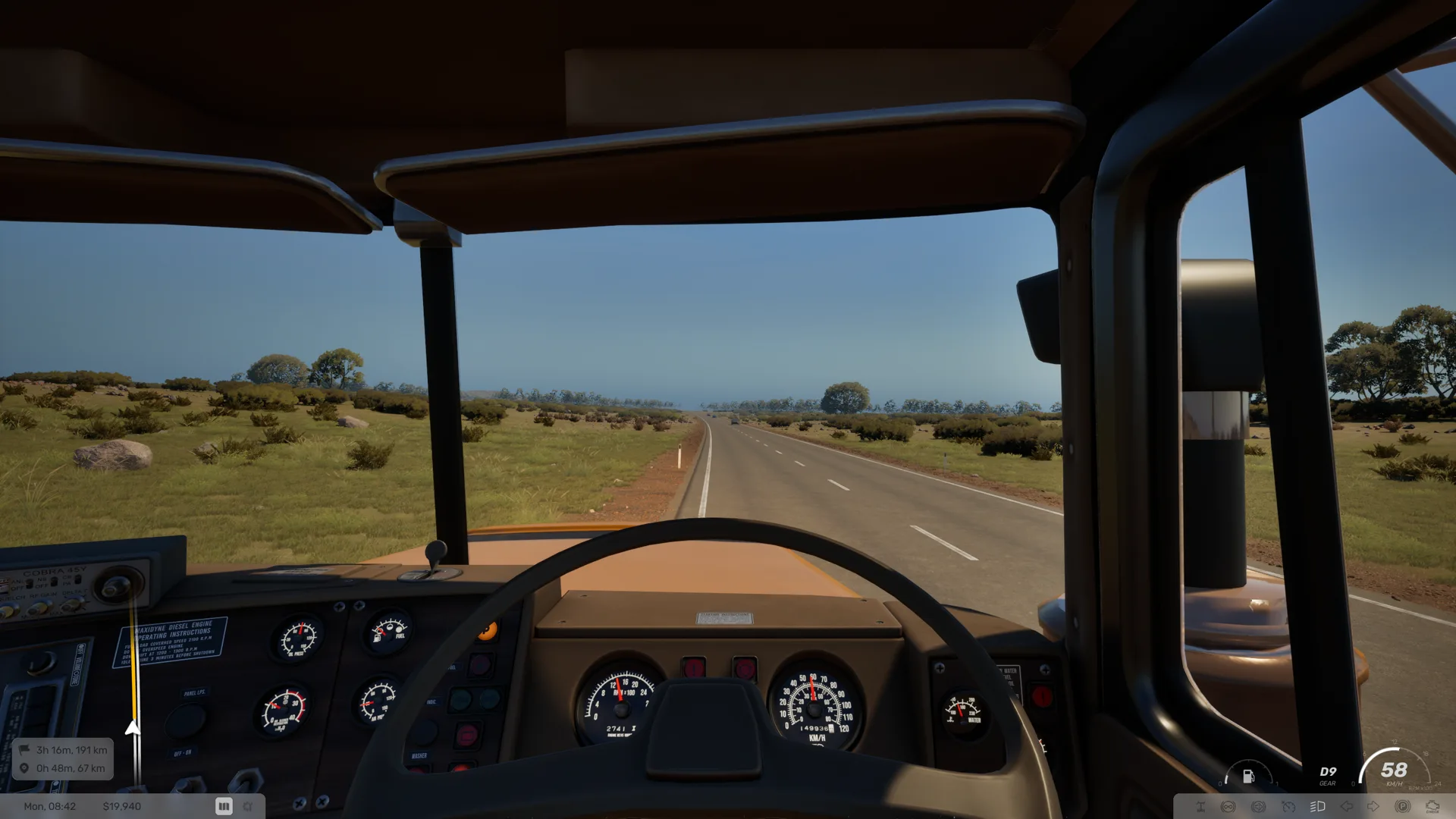
While you drive, the truck HUD shows your speed in km/h and the engine speed in RPM x100. The gear readout shows the gear you are in. A fuel gauge shows how much fuel is left in the tank.
Small icons show when the parking brake, the headlights, the high beam, a turn signal, cruise control, the retarder, the engine brake or the differential lock is on. The game does not label these icons.
The set also has a check engine icon. The game does not say when it comes on.
When you switch stations on the truck radio, the screen shows Radio with the station name. When you turn the radio off, it shows Radio off.
Default keys from the PC presets
Scroll horizontally to see all columns.
| Action | Keyboard and mouse | Xbox controller |
|---|---|---|
| Vehicle Radio | R | LBX |
Minimap
The minimap shows the area around you and the rest of your route. It marks Depot, Hotel, Workshop, Refuelling point and Bays. The full map has more marker types. See Map and minimap markers.
To change how the minimap turns, use Settings › Gameplay › Minimap Rotation. Rotating turns it with your driving direction. North Up keeps north at the top.
Objectives and notifications
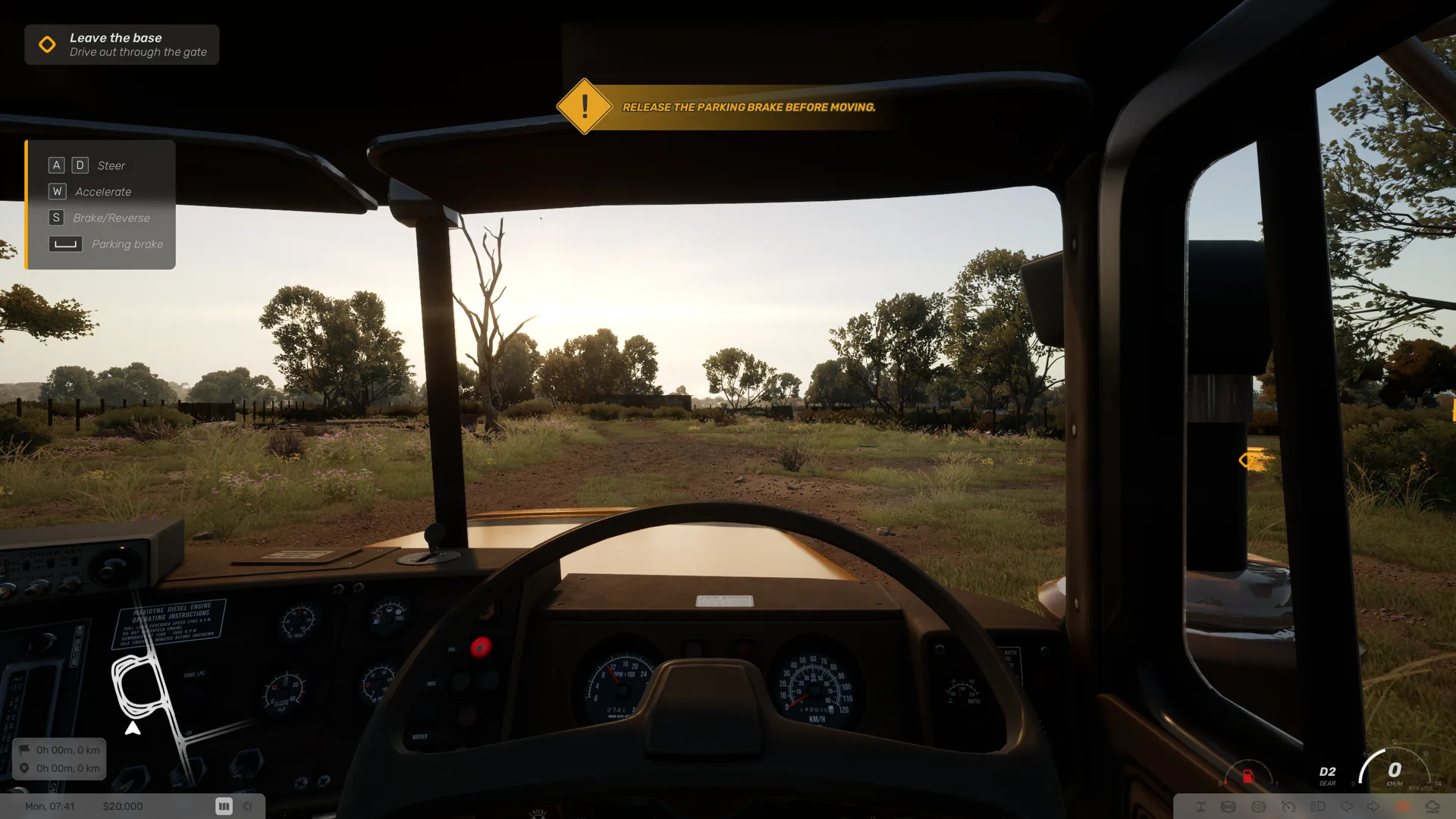
Objectives tell you what to do next. Each objective has a title and a short line, such as Get in the cab with Interact with the door. Some objectives also mark the spot you need to reach with an icon on screen.
Reminders appear when the truck is not ready for what you try to do. They cover the engine, the parking brake, the gear, the clutch and high engine revs. Start and drive lists them.
Large text marks the start of a new stage, such as Begin your working day.
Trailer reminders ask you to connect the cables or raise the supports before you move. See Couple a trailer. For the fuel warning, see Low fuel.
Two reminders send you to the CB radio. If the tank is empty when you try to start the engine, the game says Use the CB radio: Roadside Assistance, then Refuel. If you accelerate but the truck is stuck, it says Use the CB radio: Roadside Assistance, then Restore and Repair. See Roadside assistance.
When Base calls you, a notification shows Accept and a countdown in seconds. See Answer calls.
Radio talk shows as subtitles with the name of the speaker, such as Base. The subtitles show Skip with the key that skips the line.
Progress shows as notifications too:
- When an email arrives, the notification says You have a new message! and shows the key that opens your mail. See Inbox.
- When you complete a delivery, the notification names the company and says the cargo was delivered. See Deliver the load.
- When a story job starts, the notification names it and shows the key that opens the Management screen. See Story jobs.
- When you unlock a new city, a large message says You have unlocked a new city!
Other events show a short notification. At the fuel station counter, for example, the game says Nothing to pay. when you owe nothing. See Pay for fuel.
When the game saves your progress, an animated icon shows for a moment.
Info panel
The info panel shows more about your trip, your job and your truck. Press Toggle Info Panel to switch between its views.
Default keys from the PC presets
Scroll horizontally to see all columns.
| Action | Keyboard and mouse | Xbox controller |
|---|---|---|
| Toggle Info Panel | Tab | RBD-pad Up |
The panel shows:
- The day and time.
- With an active job, the job's route and times, and the time and distance left to the next point of your route and to the destination.
- For the load, Cargo, Cargo Damage, Expected and Job income. The game does not explain Expected yet.
- For the truck, the condition of each part: Engine, Transmission, Brakes, Suspension, Tyres, Oil & Filters and Cabin. See Truck condition and rest.
The tutorial uses other names for this control. Its first step calls it Cycle Info Panel, and the On Foot tip calls it Toggle Info Board.
In the cab there is also an Information boards prompt. The game does not describe yet what it shows.
Tips
Tips appear on screen as you play. Each tip has a title, a short line and the controls it is about.
- On Foot says Move around outside your truck. It lists Move Forward/Backward, Move Left/Right, Rotate Camera, Interact (e.g. enter truck) and Toggle Info Board.
- Open Road says Long hauls, big skies. Tune in and enjoy the ride. It lists Camera View and Radio.
- Driving Basics, Merging into Traffic and Enjoy the Scenic Road cover driving, lights and cameras. See Start and drive, Cab controls and Camera, seat and mirrors.
HUD settings
These options are in Settings › Gameplay:
- HUD Visibility hides the HUD, shows it only with an external camera, or always shows it. The values are Hidden, External Camera Only and Always Visible.
- Crosshair Visibility always hides the crosshair, shows it while you move the camera, or always shows it. The values are Always hidden, Visible While Moving the Camera and Always Visible.
- User Interface Scale sets the size of interface elements. The values run from Very small to Very large.
- Clock Format switches between 12-Hour and 24-Hour.
- Steering Wheel Visibility shows or hides the in-game steering wheel.
With External Camera Only, the truck gauges hide while you look from the cab. Choose Always Visible to see them in the cab too.
Notification sounds follow Settings › Audio › User Interface Volume, which also sets the volume of menu clicks.